Step 1 - Preparation
Step 2 - IUM Configuration
Step 3 - Define IUM User
Example: There is only one Jira or JSM user group with product access
-
Remove product access for the Jira or JSM user group
-
Opening the user management of IUM
-
Under source group now select the Jira or JSM user groups (from which the product access was removed)
(the source groups is still used for project permissions) -
After saving, the sync can be executed once (run now) or as a job at regular intervals.
Step 4 - Adjustment IUM Configuration
-
Assigned licences:
-
Here you can specify how many licenses IUM is allowed to use in total to provide licenses to IUM users.
-
Step 5 - IUM Browser Extension
-
Instruct all users to install the IUM Browser extension
-
More accurate tracking of user activity
-
Prevention of queue display for JSM Agents, JPD Contributors or Assets
-
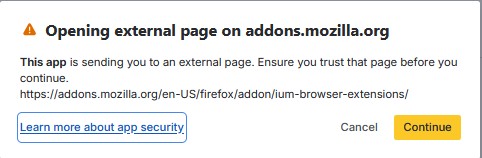
A warning message will appear regarding the opening of an external link. This can be confirmed by clicking "continue".
-
Expected behavior of IUM (example for Jira)
Login Process
-
License slots are available
-> After approximately 2 seconds, the user sees the normal queue and the reconnect starts automatically, he will be redirected to Jira within approximately 20 - 30 seconds.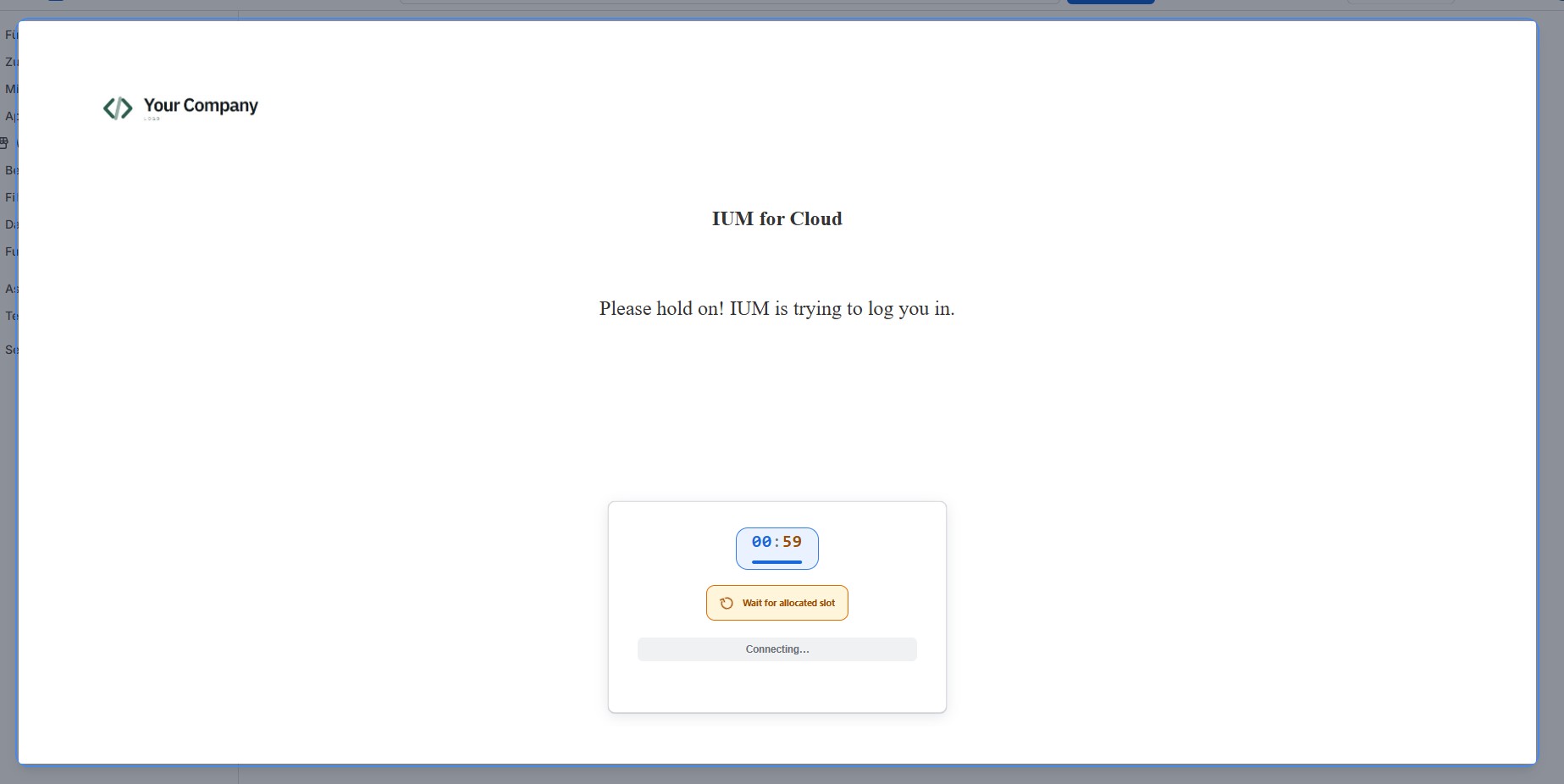
-
No slots are available
-> After approximately 2 seconds, the user sees the normal queue and the reconnect starts automatically.
-> After the timer expires, an automatic login attempt is made.
-> This process repeats until IUM has been able to assign a slot to the user.
-> Optionally, the user can try to speed up the process by clicking "reconnect" after 30 seconds.
License Revocation
-
By default, IUM checks every 5 minutes whether existing users have been inactive for longer than the set inactivity time.
-> If this is the case, these users are removed from the ium access group.
-> The affected users receive a "Lost Jira slot" popup approximately 1 minute before the license revocation.
-> Users who still have their browser open will see the queue.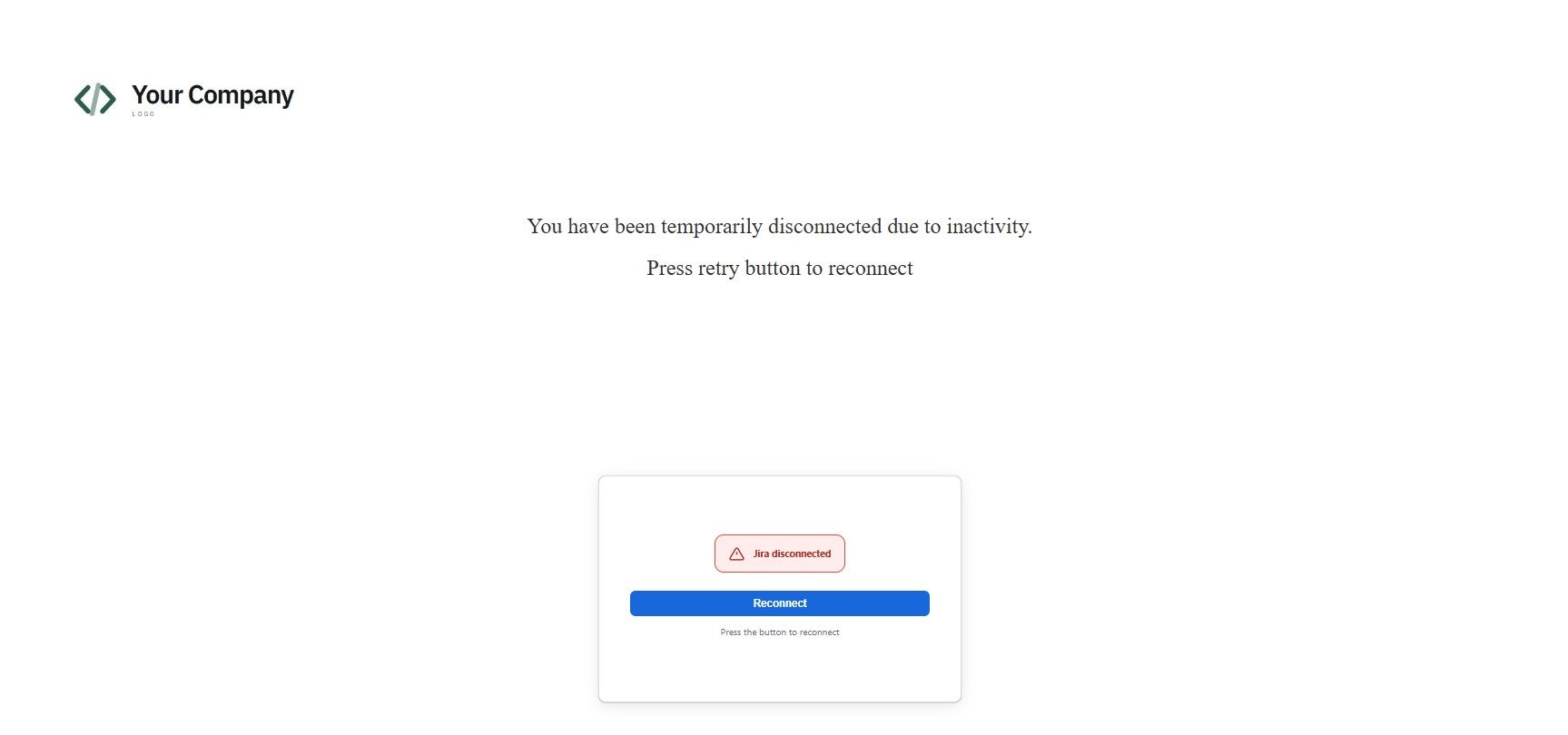
-
If the "Allow removal of inactive users on slot request" option is enabled, the following behavior occurs.
-> If user (a) is inactive for longer than the set inactivity time, another user (b) requests a slot, and ium has no free slots available
-> In this case, the user who has been inactive the longest (> set inactivity time) would lose their slot without a prior popup, and user (b) would receive that slot.
-
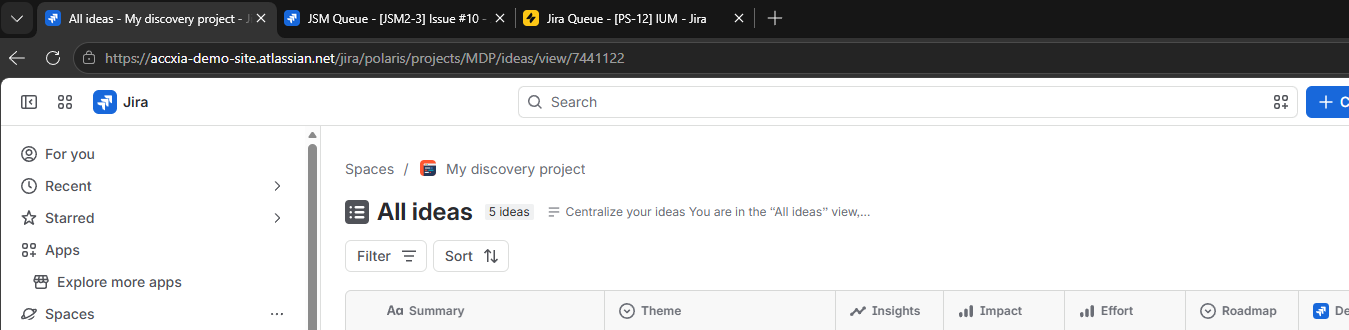
If a user still has their browser open when their license is revoked, they will see the queue displayed on the relevant Jira pages.
License Reassignment
-
A user can request a new slot at any time by clicking "reconnect"
-> If a slot is free -> redirect to the previous Jira page
-> If no slot is free -> the timer starts and attempts an automatic reconnect upon expiration. (To speed up the process, a new manual reconnect attempt can be made after 30 seconds.)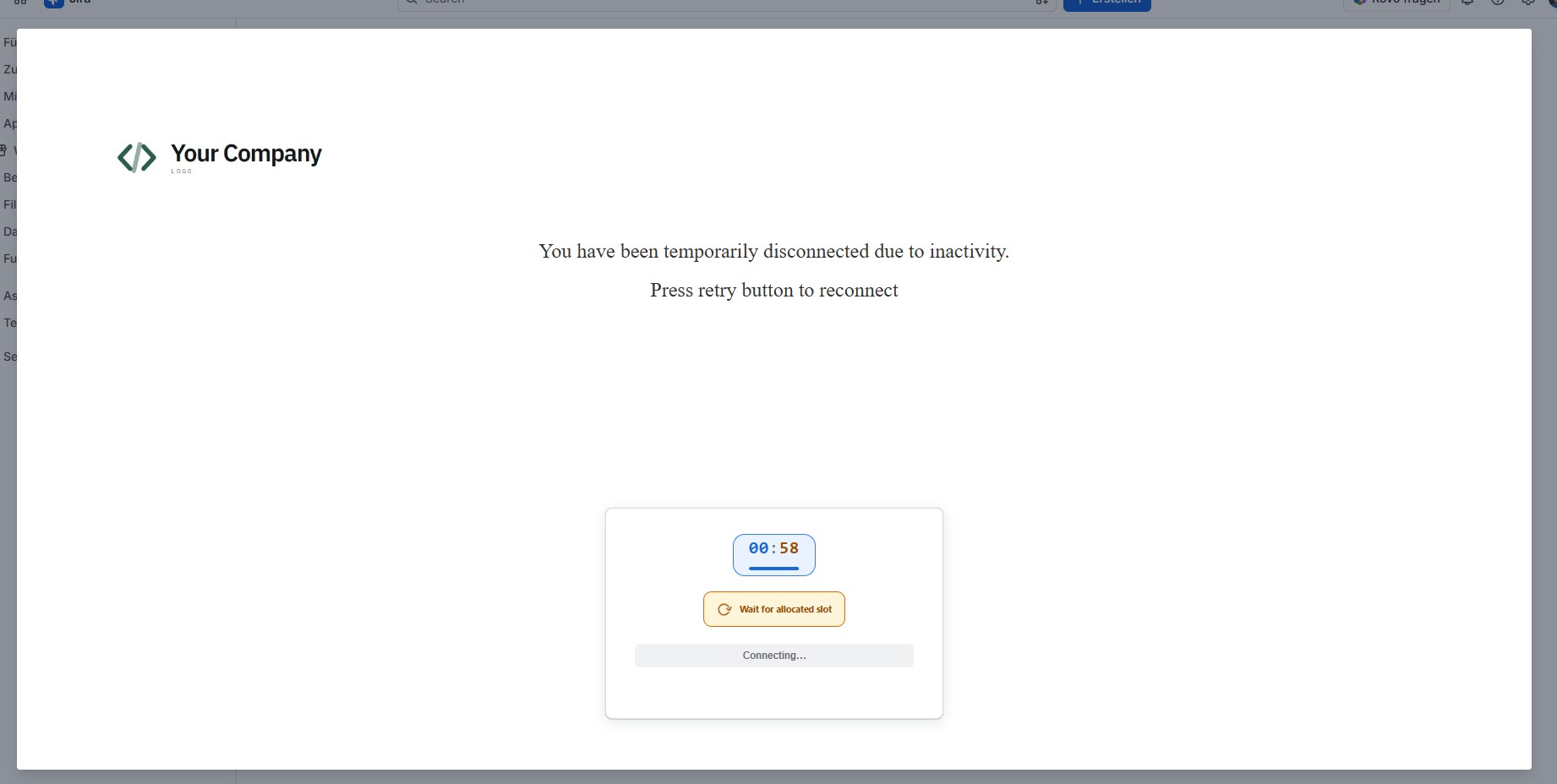
-
Option "Automatic login after removal during inactivity" is activated.
-> If the user's browser is still open when the license is revoked, the queue is displayed.
-> After the timer expired an attempt is made to automatically assign a slot.
-> If a slot is free -> automatic redirect to Jira.
-> If no slot is free -> the timer expires, and another automatic attempt is made to assign a slot.
Status information
-
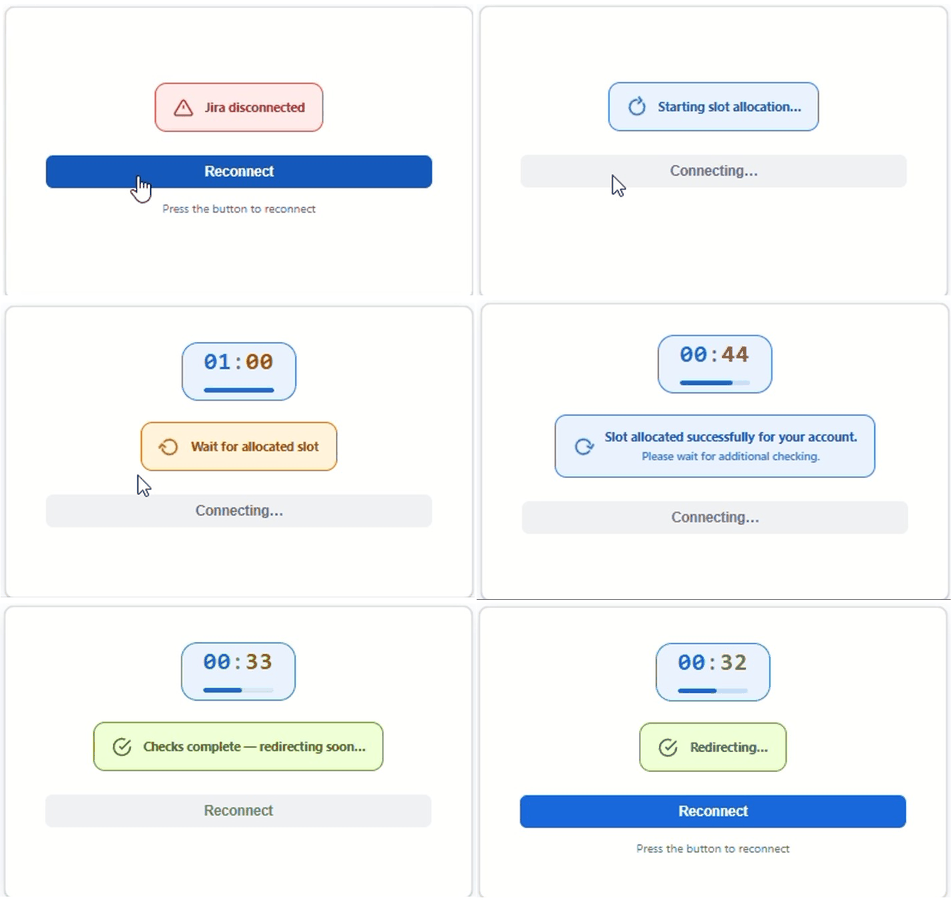
IUM displays the current status to the user.
example