Due to Atlassian's limitations, a guest user cannot be added to more than one space.
If an IUM user with a valid license is added to multiple spaces, Atlassian automatically removes that user from all space permissions as soon as they lose their license due to inactivity.
This causes problems when the user logs in again, as they no longer have any space permissions.
For IUM to function reliably, the following must be done.
All Spaces for all IUM Users
If all IUM users should be granted access to all spaces (as collaborators). -> create a new group (without confluence access) for example -> Confluence permission all ium users -> add all users there -> the ium-enable group can also be used here
Space defaults (Confluence administration - Permissions)
-> add the new Confluence permission all ium users group with role collaborator as default group -> if creating new space -> Space Access default has to be selected (this add the Confluence permission all ium users group for the new space)
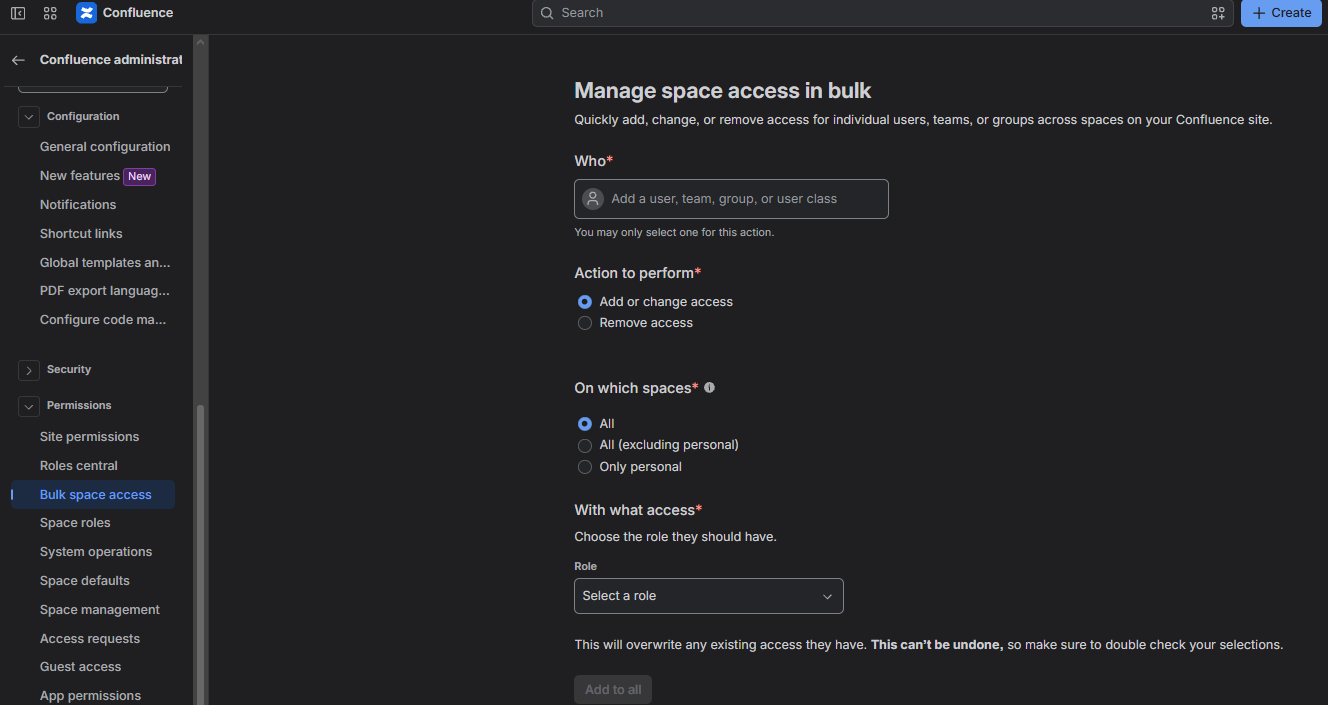
Bulk space access (Confluence administration - Permissions)
-> select the new Confluence permission all ium users group under "who" -> select add or change access -> on wich space -> all -> role -> collaborator -> add to all
Via IUM Bulk Space Access
All Spaces for all IUM Users
-> select permission group (you can select multiple groups)
-> select add or change access / remove access -> select All spaces -> select access role -> preview -> execute
-> results
Different Spaces for different IUM Users
-> create different space permission groups (without confluence access) and add the specific ium users there
-> select permission group (you can select multiple groups)
-> select add or change access / remove access
-> select selected spaces and search the specific space (you can select multiple spaces)
-> select access role
-> preview
-> execute
-> History
-> with a click at the status, the progress & result open again