
Since assigning an assignee requires a JSM license and not all users always have a license via IUM, the following points should be considered when using IUM.
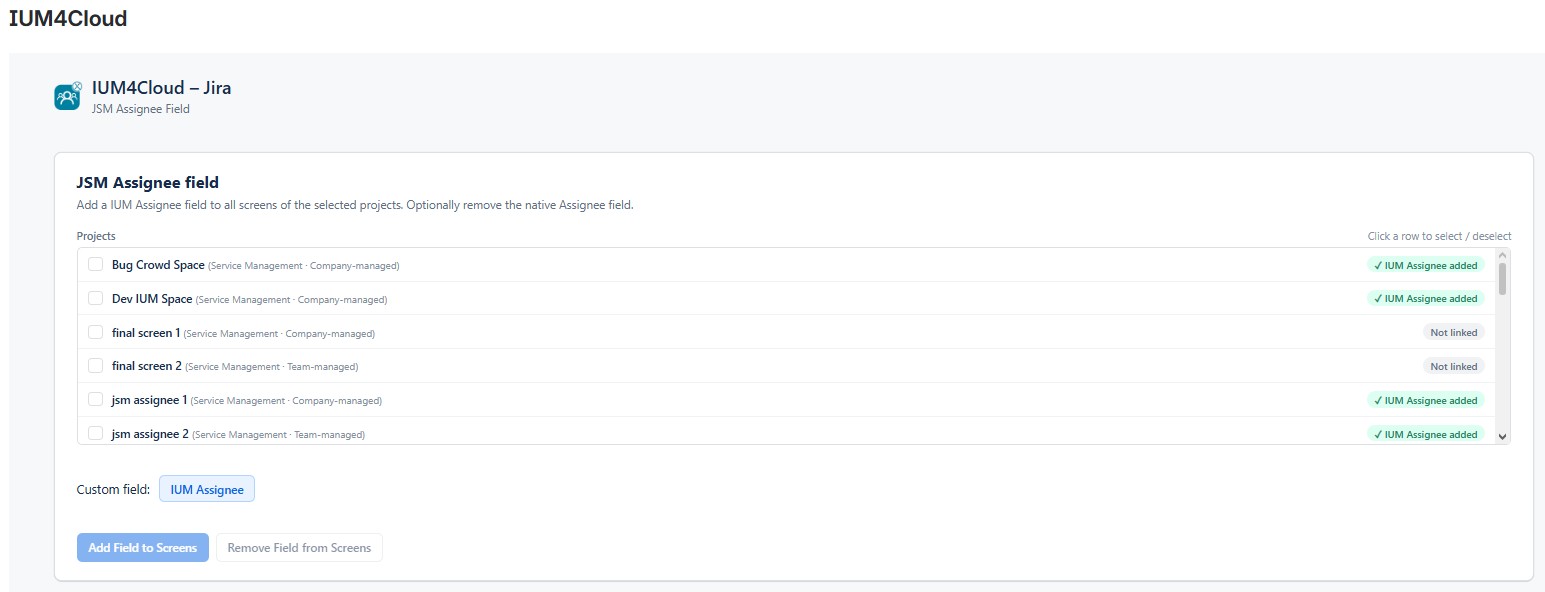
IUM offers the possibility to insert a custom IUM Assignee field for JSM projects via the JSM Assignee tab to solve this problem.
How it works
Add IUM Assignee field
-
Choose one or more projects
(Projects that have already been edited are displayed.) -
click at “Add field to screens”
-
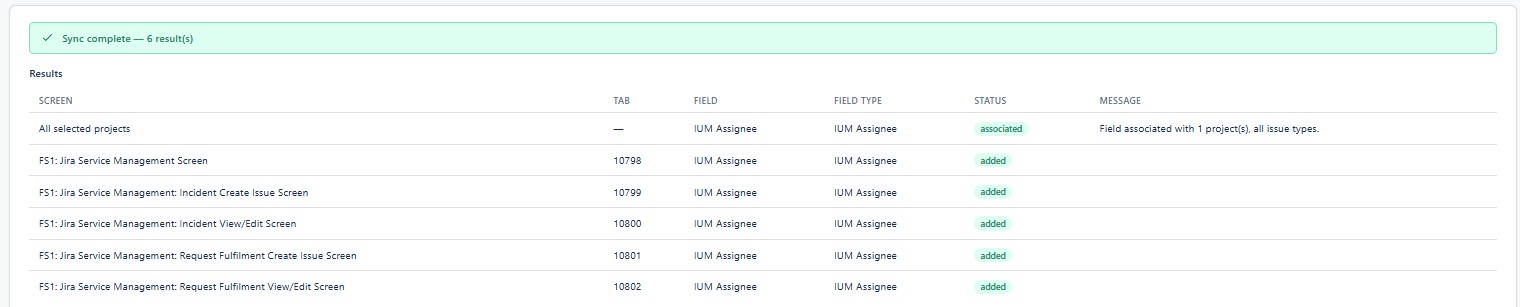
After adding the IUM Assignee field, further manual steps are required.
-
Company managed projects
-
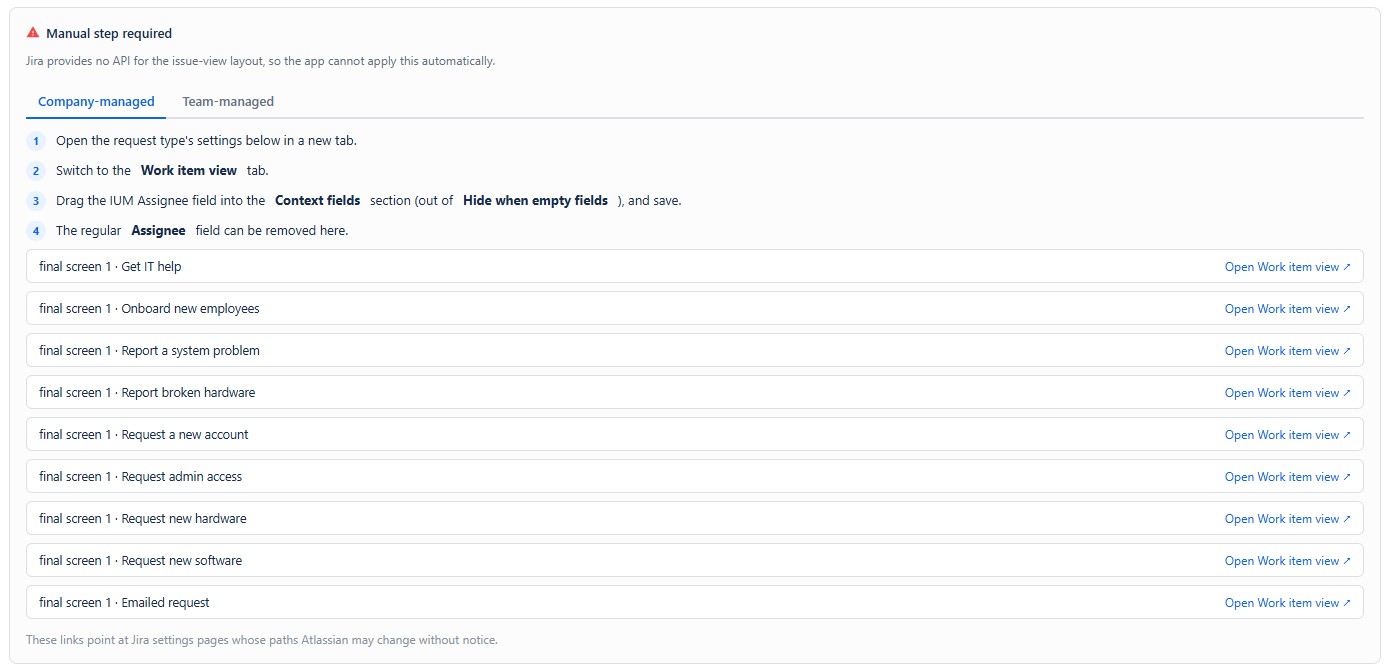
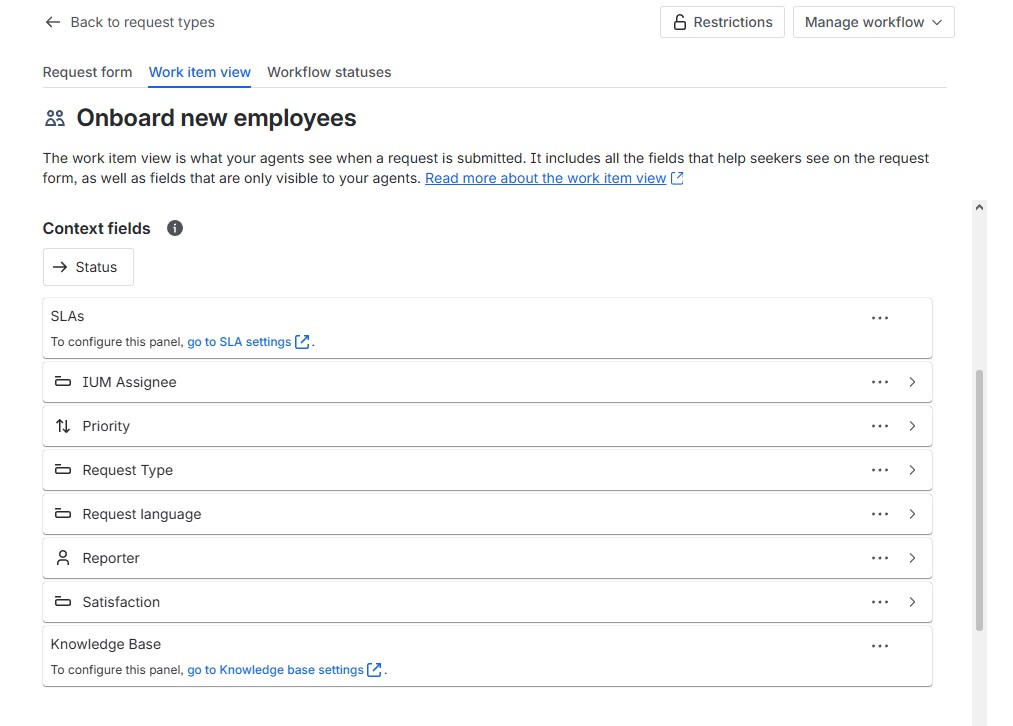
For each request type below, open its settings in a new tab, switch to the Work item view tab, drag the IUM Assignee field into the Context fields section (out of Hide when empty fields), and save.
The regular Assignee field can be removed here. -
IUM lists the relevant requests.
-
The work item view must be adapted for each request type.
-
After the adjustment, the IUM Assignee field is now displayed in the JSM ticket.
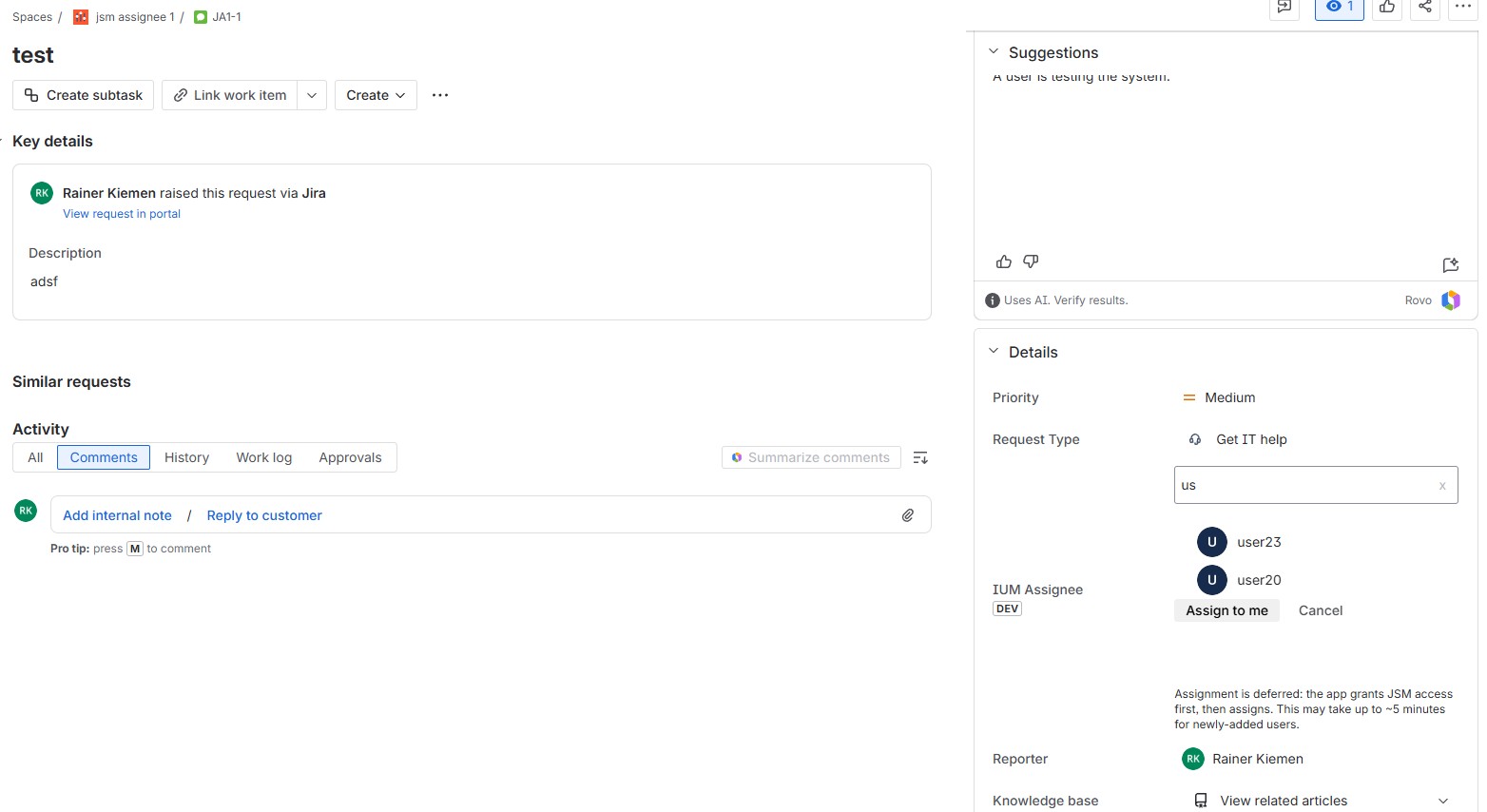
The IUM Assignee field now allows users with a fixed license, and IUM users with/without a license, to be designated as assignees.
-
-
Team managed projects
-
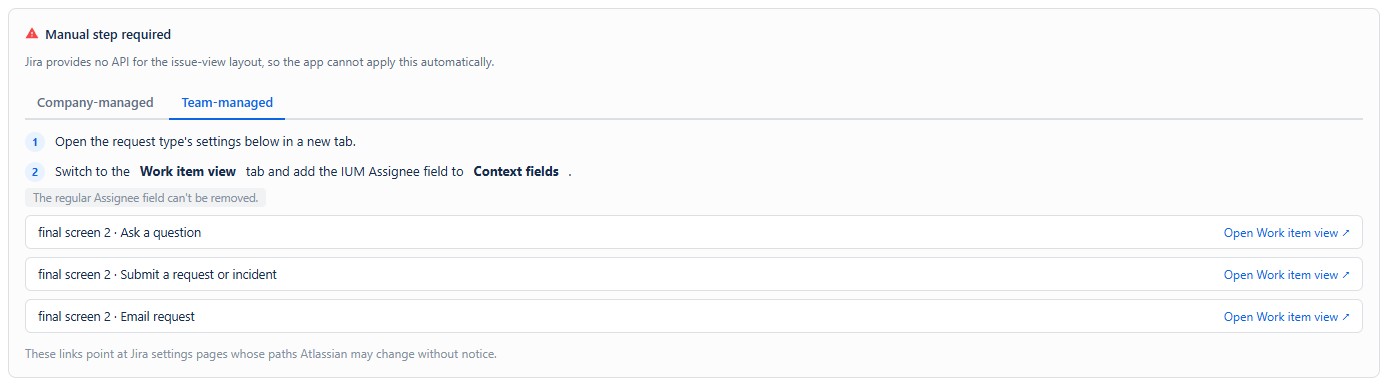
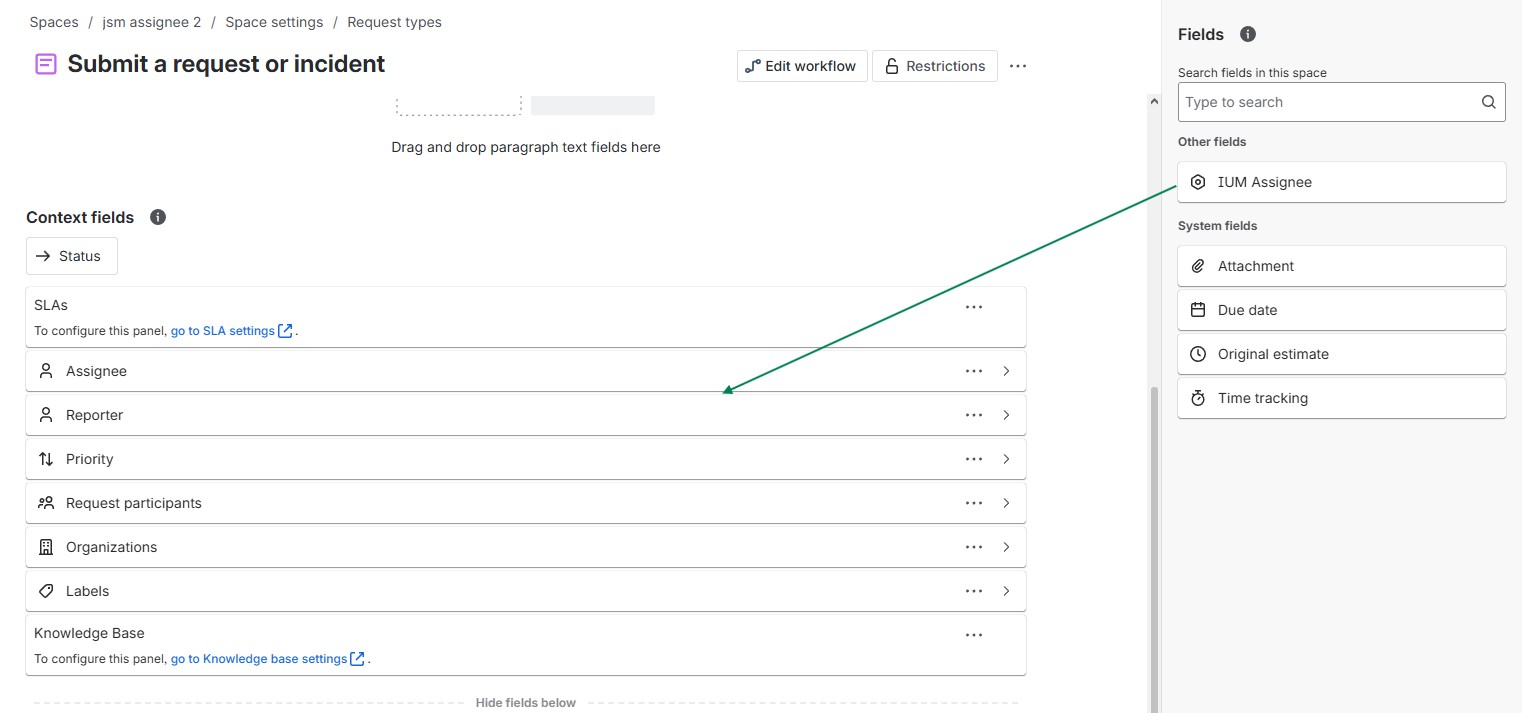
For each request type below, open its settings in a new tab, switch to the Work item view tab and add the IUM Assignee field to Context fields.
The regular Assignee field can't be removed. -
IUM lists the relevant requests.
-
The work item view must be adapted for each request type.
-
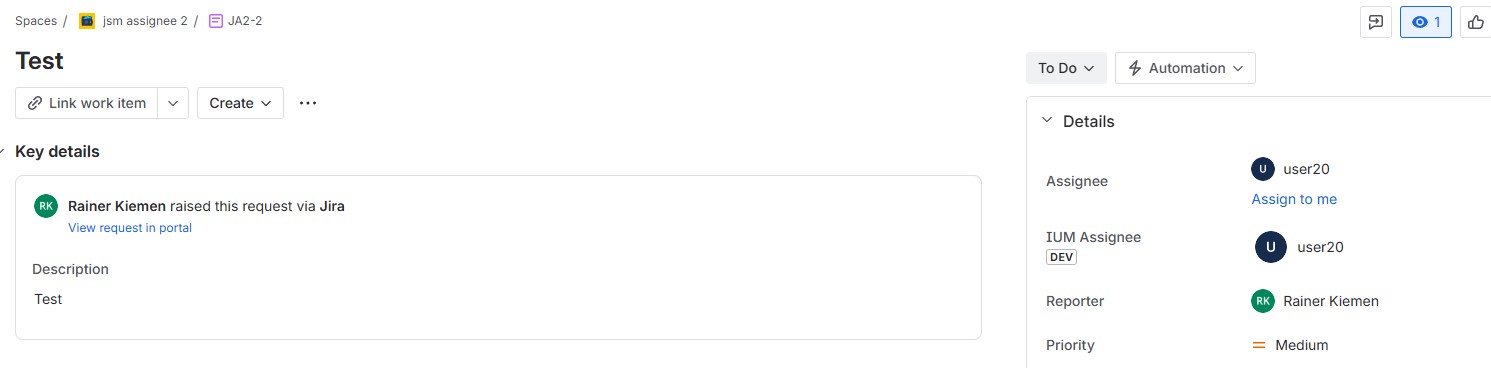
After the adjustment, the "IUM Processor" field is now additionally displayed in the JSM ticket.
Unfortunately, removing the regular Assignee field is not permitted here.
-
The IUM Assignee field now allows users with a fixed license, and IUM users with/without a license, to be designated as assignees.
-
-
Removing IUM Assignee field
-
Choose one or more projects
-
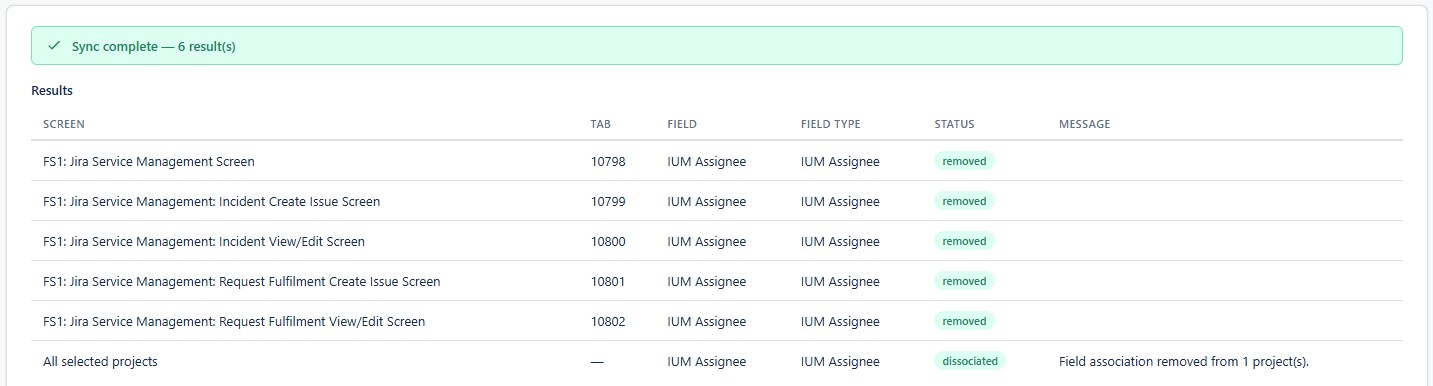
click at “Remove field to screens”
-
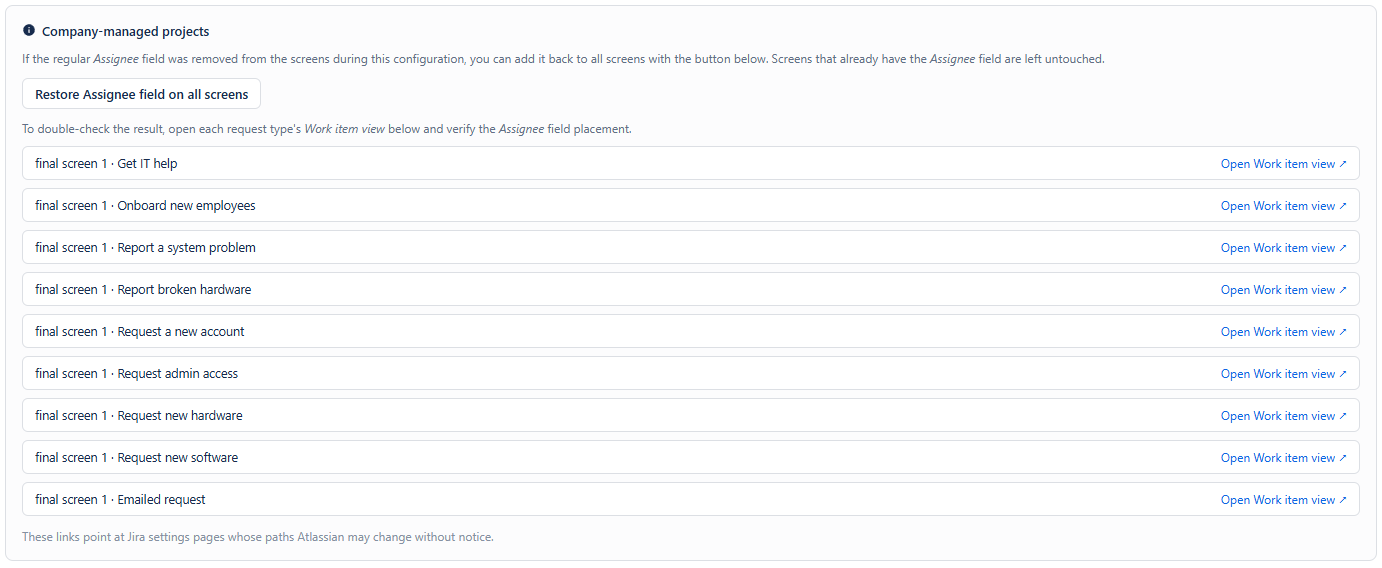
The original assignee field can be automatically restored via "Restore Assignee field on all screens" (if it was removed).

-
After removing the IUM Assignee field, further manual steps are required.
-
Company managed projects
-
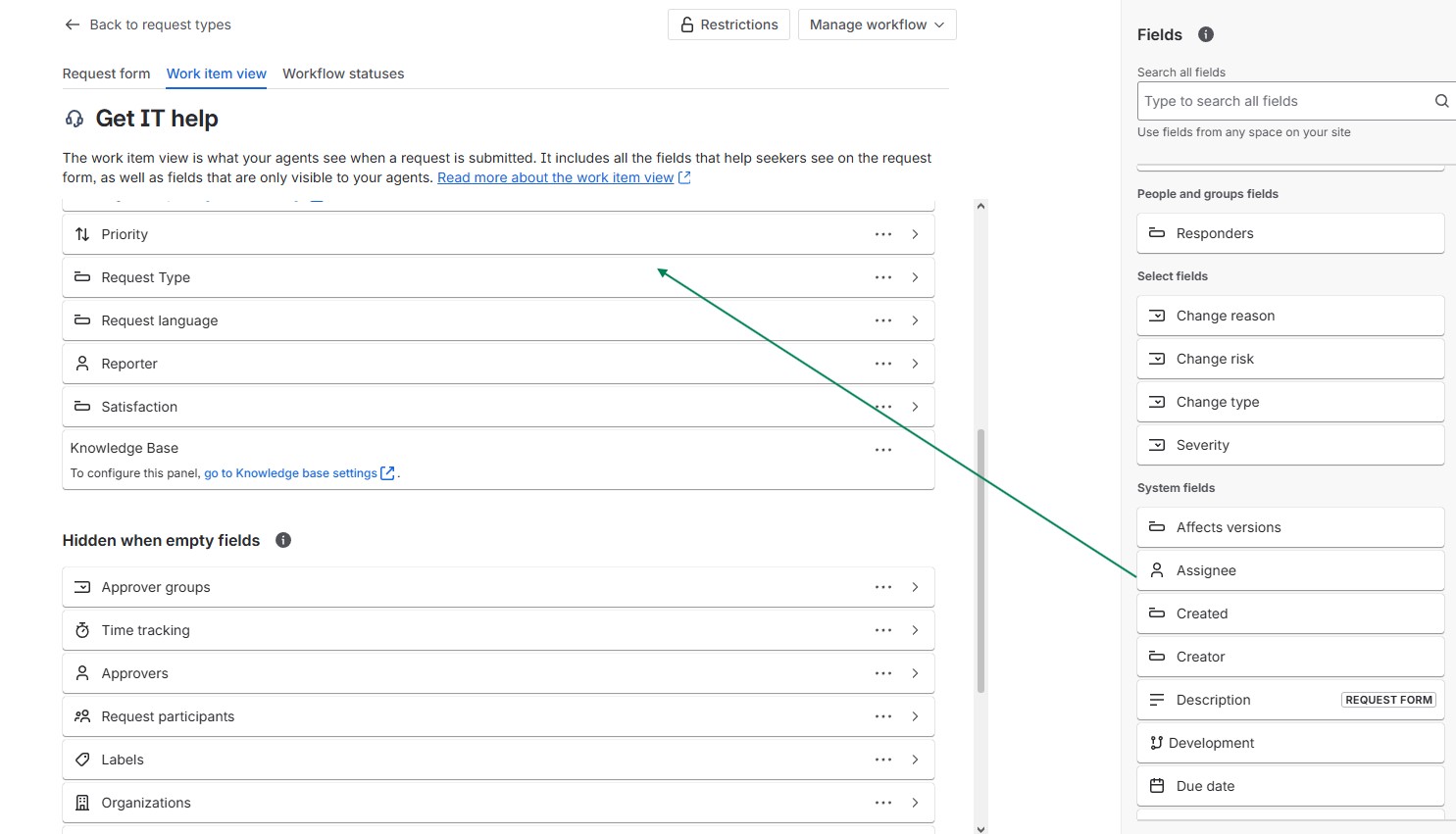
For each request type below, open its settings in a new tab, switch to the Work item view tab, drag the Assignee field into the Context fields section and save.
-
IUM lists the relevant requests.
-
The work item view must be adapted for each request type.
-
-
-
Team managed project
No further changes are necessary after removing the IUM Assignee field.
-