
Please wait to enter the data until the necessary structures have been created.

Admin Settings

Atlassian Organisation API Key
-
Create a new Atlassian Organisation API Key (API without scopes must be selected)
(Insert Atlassian Organisation API Key created during preparation here)
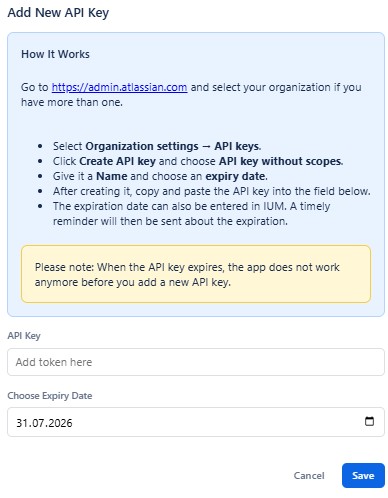
Pay attention to the validity of the Atlassian Organisation API Key.
If the admin token has expired, IUM will no longer work until a new API key has been added.
Admin Email
-
Email address(es) to which a notification should be sent in case of incorrect configuration.
IUM Settings
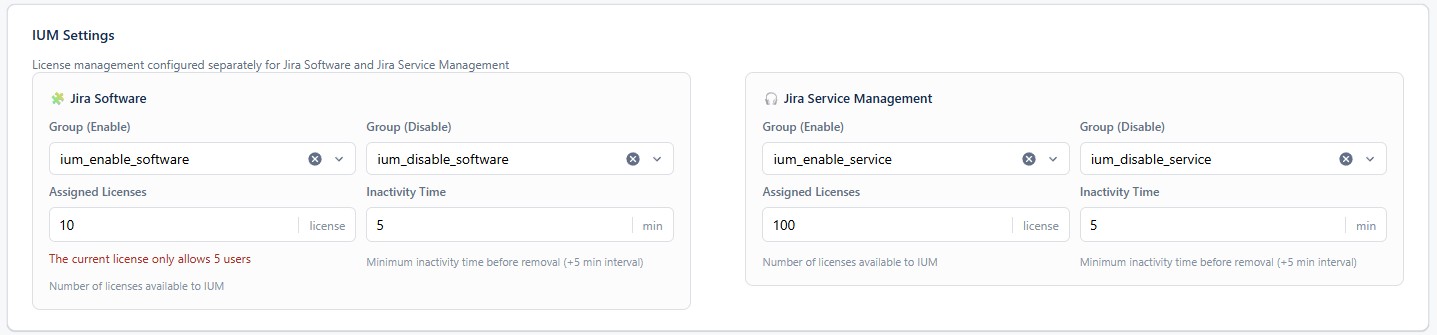
Software Group Enable
-
Here you select the group that was defined as the IUM Jira Access Group under "Preparation".
-
Only groups with Jira product access are displayed (excluding admin groups).
-
(this group may only have product access to Jira)
Software Group Disable
-
Here you select the group that was defined as the IUM Jira User Group under "Preparation".
-
After the complete setup, this group contains all users who are managed via IUM.
-
Only groups without Jira product access are displayed.
-
-
IUM does not allow more users in the IUM user group than the IUM license permits. In the free version, this is 5 test users.
Any excess users will be removed from the group! -
The existing normal user group should "not" be selected here.
-
Service Group Enable
-
Here you select the group that was defined as the IUM JSM Access Group under "Preparation".
-
Only groups with JSM product access are displayed (excluding admin groups).
-
(this group may only have product access to JSM)
Service Group Disable
-
Here you select the group that was defined as the IUM JSM User Group under "Preparation".
-
After the complete setup, this group contains all users who are managed via IUM.
-
Only groups without JSM product access are displayed.
-
IUM does not allow more users in the IUM user group than the IUM license permits. In the free version, this is 5 test users.
Any excess users will be removed from the group! -
The existing normal user group should "not" be selected here.
Assigned licenses (JSM / Jira)
-
The number of licenses available to IUM is entered here
(JSM / Jira License tier - user with fixed JSM / Jira license = maximum number of assignable licenses for JSM / Jira)
Example: 500 Jira License tier - 20 User with fix Jira License = max 480 assignable licenses for ium Jira user -
IUM only works with the configured number of licenses.
(If the value is set to 100, IUM will assign a maximum of 100 licenses to IUM users.) -
If the value exceeds the maximum allowed number of users, it is not possible to set the value.
-
The values may differ for Jira and JSM.
Inactivity time
-
The time in minutes a user must be inactive to be removed from the access group
(Since the removal is done in 5-minute intervals, the actual value of inactivity may increase by up to a maximum of 5 minutes.) -
For testing purposes, values between 5 and 30 minutes can be entered (In this case, an information popup appears).
The values may differ for Jira and JSM.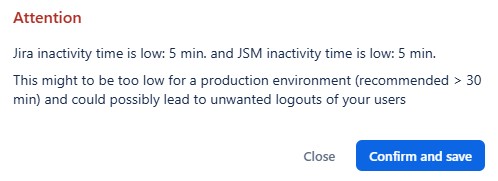
A higher value should be used for the production instance.
Additional Settings

Extension Check
-
Here the display of the popup can be deactivated for users without extension
(For accurate recording of user activity, the popup should be displayed so that users can easily install the IUM Browser Extension)
Autologin after removal during inactivity
-
If the user's browser is still open, the user will be automatically logged back in after 1 minute.
Allow removal of inactive users on slot request
-
If no slot is available for a new user, but a user exceeds the set inactivity time, the slot will be revoked.
-
In this case, the user will not receive a lost slot popup.