Global Settings
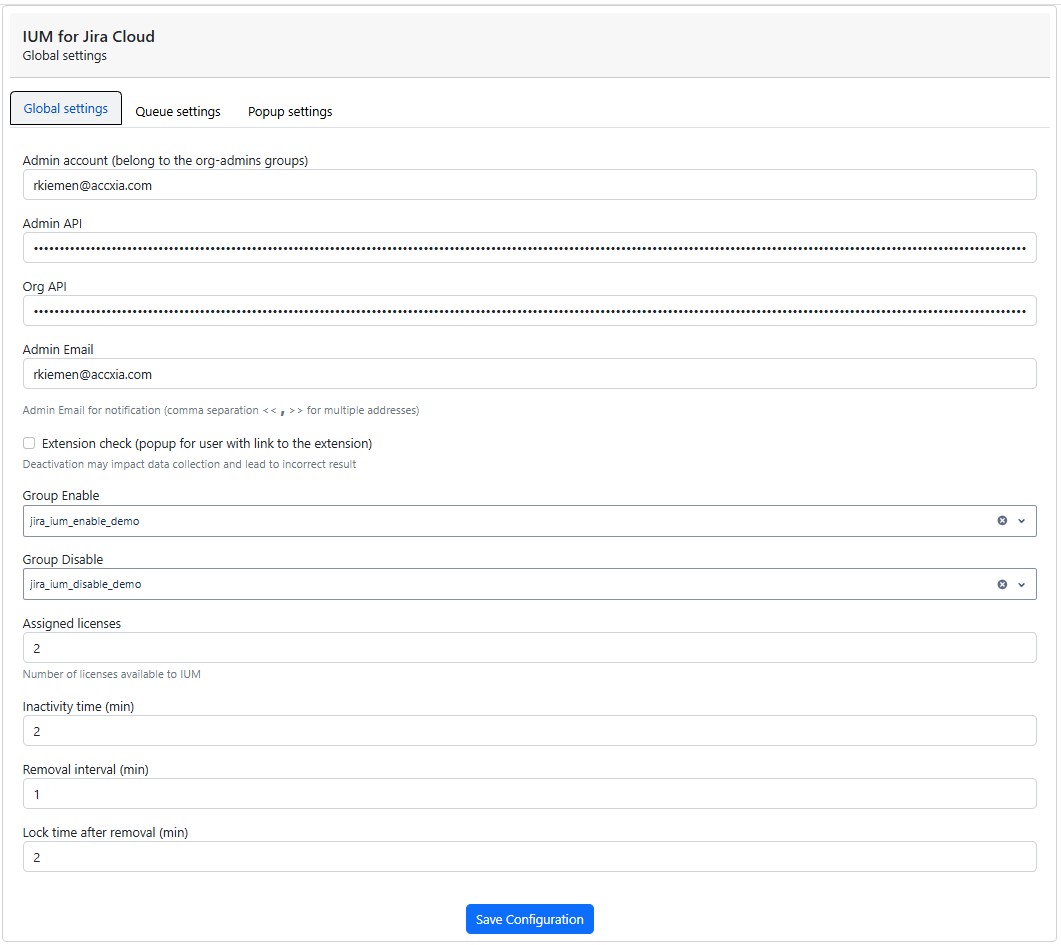
Admin account
-
Specify a user from the org-admin group
(Enter the name of the Org Administrator for whom the API token was created during preparation)
Admin API
-
Insert an API token from the specified administrator account (api without scopes)
(Insert the api token created during preparation here)

Org API
-
Insert an API token from the organization (api without scopes)
(Insert the api token (organization) that was created during preparation)
After entering these three fields, the configuration must be saved.
Admin Email
-
Email address(es) to which a notification should be sent in case of incorrect configuration.
Extension Check
-
Here the display of the popup can be deactivated for users without extension
(For accurate recording of user activity, the popup should be displayed so that users can easily install the IUM Browser Extension)
Group Enable
-
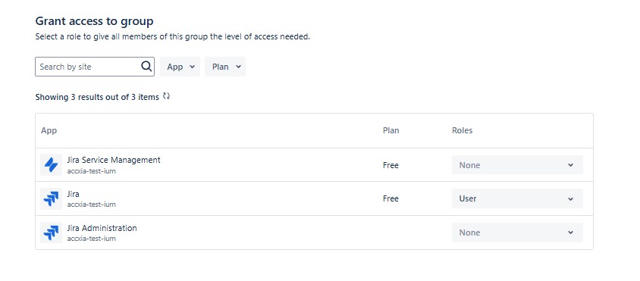
Here you select the group that was defined as the IUM Access Group under "Preparation".
-
Only groups with Jira product access are displayed (excluding admin groups).
-
(this group may only have product access to Jira)

Group Disable
-
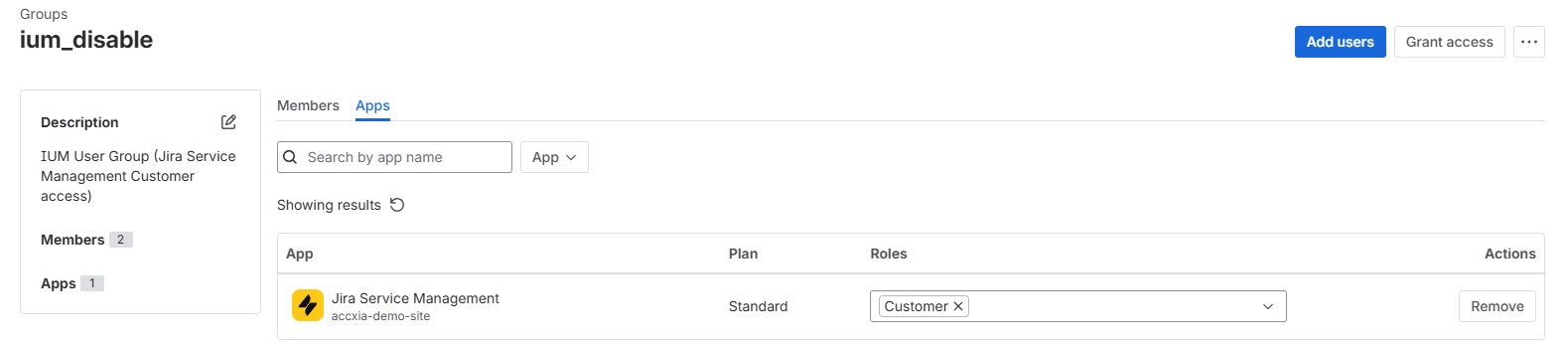
Here you select the group that was defined as the IUM User Group under "Preparation".
-
After the complete setup, this group contains all users who are managed via IUM.
-
Only groups without Jira product access are displayed.
IUM does not allow more users in the IUM user group than the IUM license permits. In the free version, this is 5 test users.
Any excess users will be removed from the group!The existing normal user group should "not" be selected here.

Assigned licenses
-
The number of licenses available to IUM is entered here
-
See Determination of user peak - Evaluation
Inactivity time
-
The time in minutes a user must be inactive to be removed from the access group
Removal interval
-
Interval in which the IUM Access Group checks whether users have been inactive for longer than the specified inactivity time.
-
Users who exceed the specified inactivity value are removed from the access group.
Lock time after removal
-
During this period, a direct re-login of the user after removal due to inactivity by the removal job from the access group will be blocked.
-
After the timer has expired, the user can log in again manually.
Queue Settings
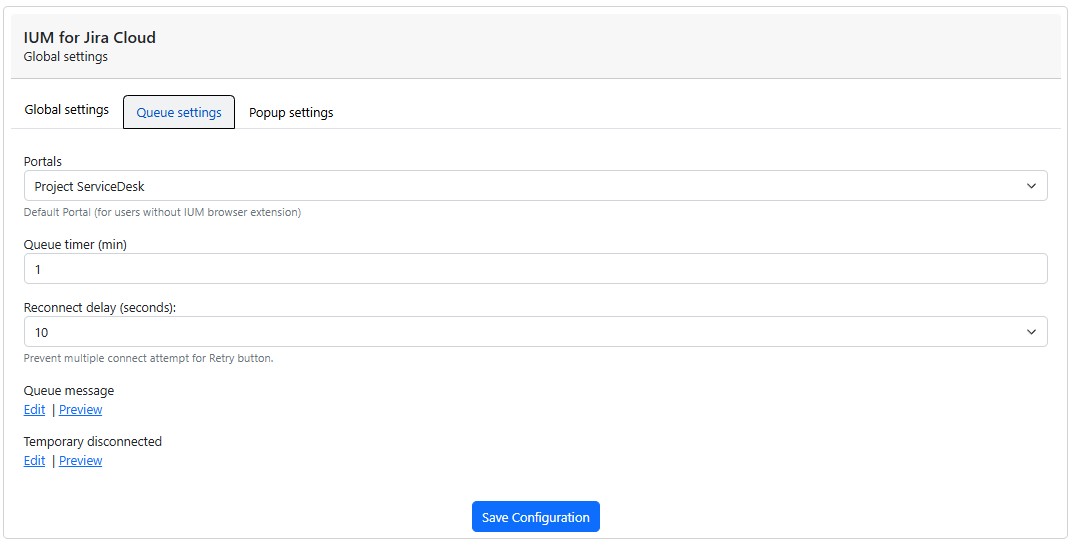
Portals
-
Portal used by ium users without an extension to access Jira.
Queue timer
-
Interval in which IUM attempts to log in a user automatically.
Reconnect delay
-
Here you can select how long the retry button on the queue page should remain locked after being clicked if no license is available.
Queue message
-
Text displayed during the queue
-
The message appears when IUM has no free licenses left and no user is inactive for more than the set time.
(If no custom text is specified, the standard text is displayed) -
Queue Editor / Preview
The editor allows you to freely customize the display during the queue.
(The customized page is displayed above the timer and the retry button.)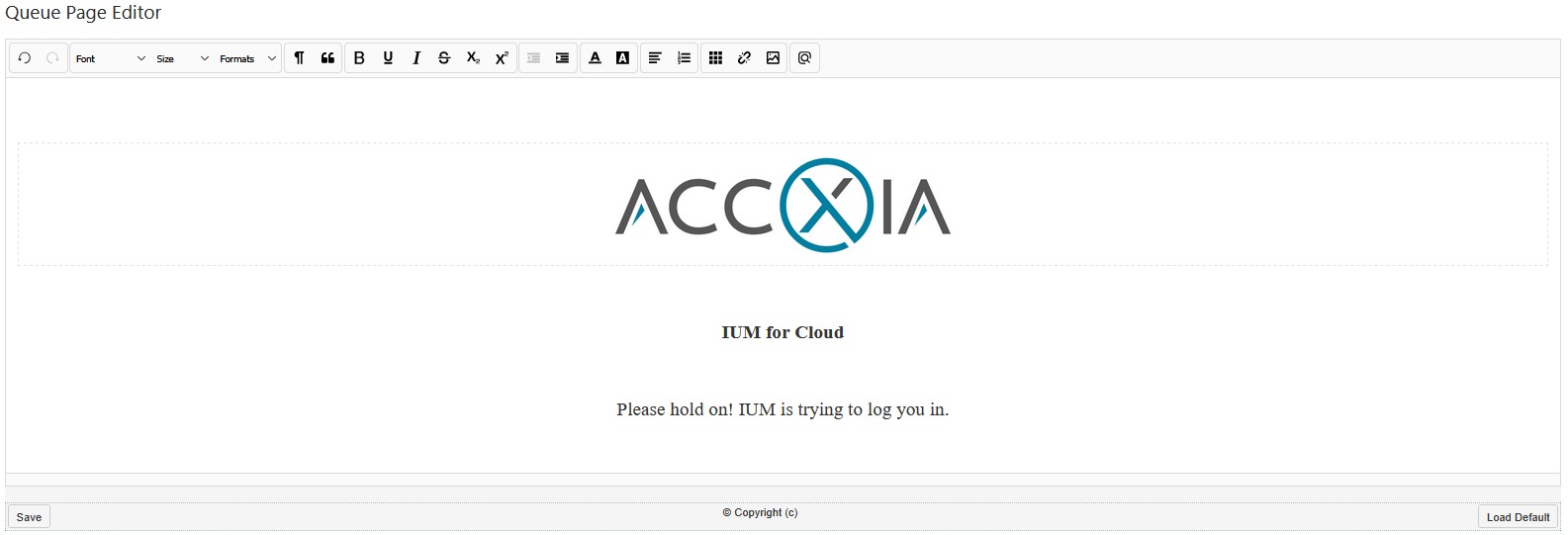
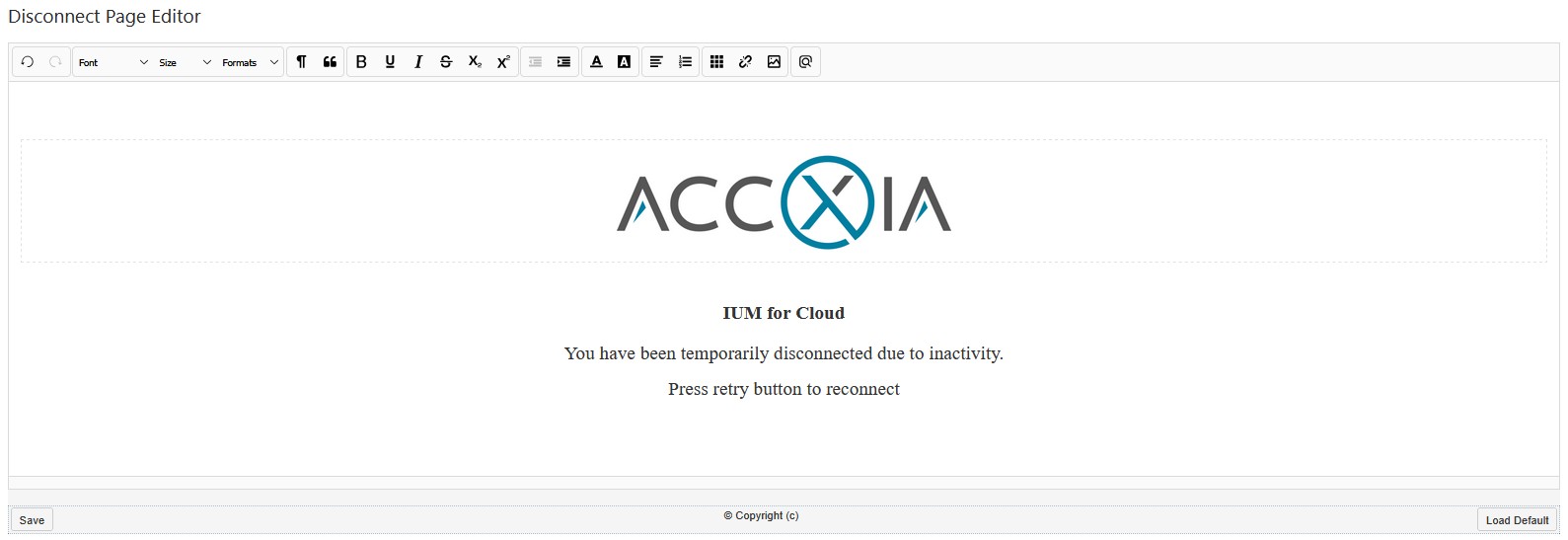
Temporary disconnected
-
Text that is displayed after the queue timer has expired
-
This message only appears after the timer has expired if the user was removed from the access group by the removal job due to inactivity.
(If no custom text is specified, the standard text is displayed) -
Disconnected Queue Editor / Preview
The editor allows you to freely customize the display during the queue.
(The customized page is displayed above the timer and the retry button.)
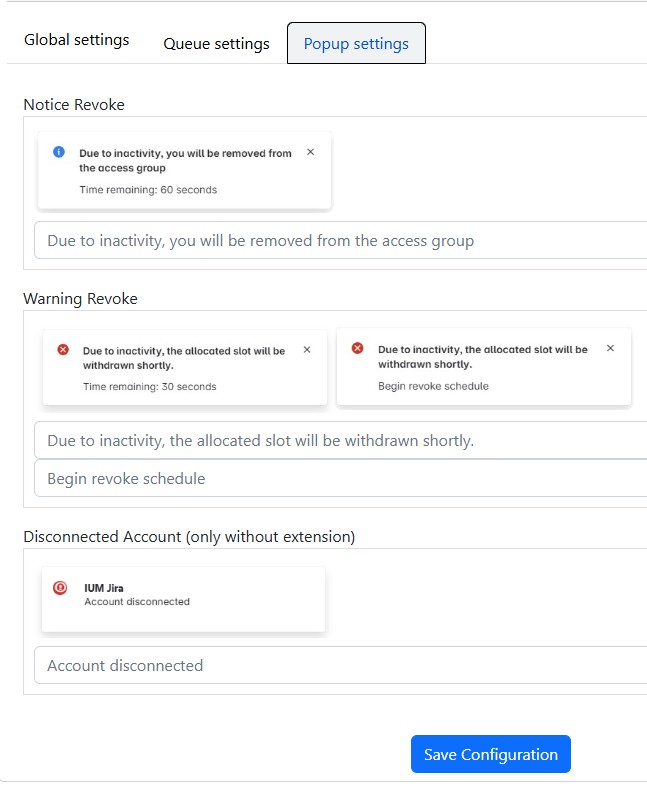
Popup Settings
-
Here you can adjust the display text of the respective IUM messages.